Journal / Web product development
Ollama vs LM Studio: local models for coding
Topics
- AI
- Developer tools
- Local LLM
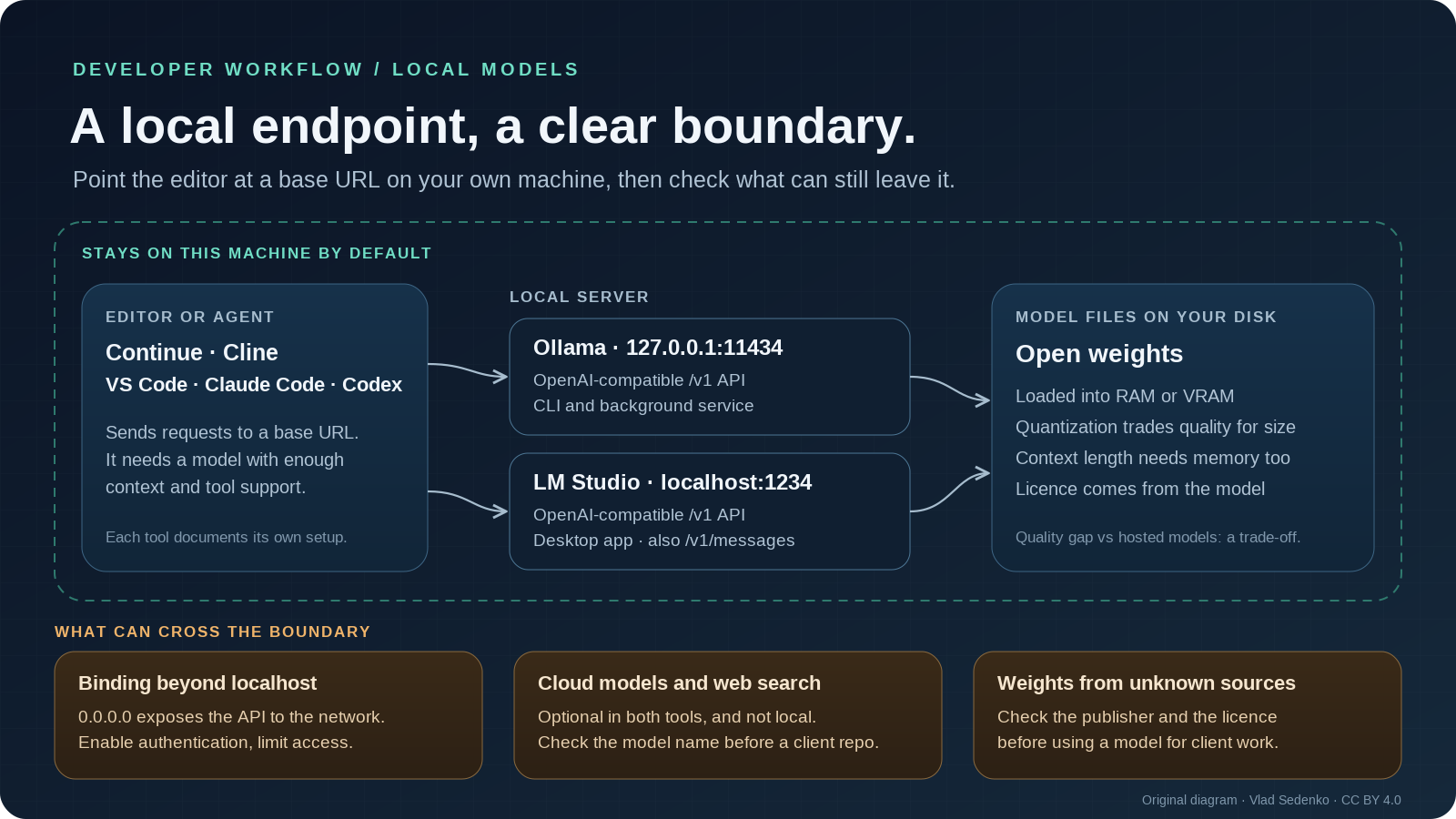
Ollama vs LM Studio is not really a contest between two engines. Ollama is a command-line tool and background service; LM Studio is a desktop app with an optional command line and a headless mode. Both download open-weight models, run them on your hardware and expose a local OpenAI-compatible API. Pick Ollama if you live in the terminal or want a service you can script. Pick LM Studio if you want to browse, load and test models in a graphical interface first. The more important decision comes earlier: whether a local model fits the job at all.
Sources were checked on 11 November 2026; the scheduled publication date is 25 November 2026. Everything below comes from the vendors' and editors' own documentation. I did not benchmark any model, so there are no speed or quality numbers here, and the examples are documented commands, not results from my machine.
When a local model makes sense for code
A local model earns its place in three situations.
- Privacy and NDA work. When both the tool and the model run on your machine, prompts and code do not go to a hosted API. LM Studio's offline documentation says that once a model is downloaded, chatting with it, chatting with documents and running the local server do not need the internet. Ollama's FAQ says that when running locally it does not see your prompts or data.
- Offline work. A downloaded model keeps working on a train or in a restricted network. Searching for models, downloading them and updating the app still need a connection.
- Predictable cost. A local model has no per-token bill. You pay with hardware, electricity and your own time instead. For steady, repetitive tasks that can be a better deal, though I would not claim it saves money without counting your own usage.
It is the wrong choice when you need the best available result on a hard task. The models that fit on a laptop or a single desktop GPU are generally smaller than the frontier models behind hosted coding agents, and quantization (explained below) gives up a little more quality to save memory. Treat that as a trade-off, not a verdict: I am not quoting a benchmark because I did not verify one. Test a local model on a few of your own tasks before you rely on it, and keep a hosted model for work where quality matters more than data residency.
A practical split many teams could try: local models for sensitive code, boilerplate, commit messages and offline sessions; a hosted model for architecture questions and difficult debugging, with a rule about which repositories may be sent where. If you need help writing that rule, see AI consulting.
Original diagram by Vlad Sedenko, licensed under CC BY 4.0. It shows data flow and boundaries, not a product interface.
Ollama vs LM Studio at a glance
| Ollama | LM Studio | |
|---|---|---|
| Form factor | App plus CLI (ollama); runs a local server | Desktop app; lms CLI ships with it; headless llmster daemon |
| Platforms | macOS, Windows, Linux, plus an official Docker image | macOS (Apple Silicon only), Windows (x64 and ARM), Linux (x64 and ARM64, AppImage) |
| Licence | The GitHub repository is MIT-licensed | Proprietary software under LM Studio's terms; lms is MIT-licensed |
| Local API | OpenAI-compatible at http://localhost:11434/v1/; native API at /api/ | OpenAI-compatible at http://localhost:1234/v1; Anthropic-compatible /v1/messages; REST API |
| Model sources | Ollama library (ollama pull), or import GGUF and Safetensors | Built-in downloader for Hugging Face models |
| Best for | Scripting, services, containers, terminal-first workflows | Trying models in a GUI, then serving the one you pick |
The licence row needs a caveat. Ollama's repository licence is MIT. LM Studio's terms grant a licence "solely for Your personal and / or internal business purposes", and its pricing page lists local models under a Free plan. I am not a lawyer, so read the terms before rolling it out to a company.
Ollama in practice
On Linux the documented install is one command, with manual tarballs for x86-64 and ARM64 and an extra ROCm package for AMD GPUs:
curl -fsSL https://ollama.com/install.sh | sh
Then run a model. The Ollama README uses this example:
ollama run gemma4
The OpenAI compatibility page documents /v1/chat/completions, /v1/completions, /v1/models, /v1/embeddings and /v1/responses on the local server. The client needs an API key value, but Ollama ignores it:
curl -X POST http://localhost:11434/v1/chat/completions \
-H "Content-Type: application/json" \
-d '{
  "model": "gpt-oss:20b",
  "messages": [{ "role": "user", "content": "Say this is a test" }]
}'
The compatibility is a subset. For example, the documented chat-completions fields do not include tool_choice, n or logprobs, so check the list if your tool depends on one of them.
LM Studio in practice
You start LM Studio's server from the Developer tab, or from a terminal. The server documentation gives:
lms server start
The OpenAI-compatible endpoints are /v1/models, /v1/responses, /v1/chat/completions, /v1/embeddings and /v1/completions, and the documented examples assume port 1234:
curl http://localhost:1234/v1/chat/completions \
  -H "Content-Type: application/json" \
  -d '{
    "model": "use the model identifier from LM Studio here",
    "messages": [{"role": "user", "content": "Say this is a test!"}],
    "temperature": 0.7
  }'
For a server without a GUI, LM Studio documents llmster, a headless daemon: install it with curl -fsSL https://lmstudio.ai/install.sh | bash and start it with lms daemon up. With just-in-time loading switched on, an inference request loads the model if it is not in memory yet.
Hardware basics: memory decides what runs
A model is a set of weights that has to sit in memory while it runs. On a GPU that memory is VRAM; otherwise it is system RAM, and Ollama's FAQ shows how to see where a loaded model landed: ollama ps reports 100% GPU, 100% CPU, or a split between the two. A split usually means the model did not fit in VRAM entirely.
Quantization compresses the weights. LM Studio's download guide describes the Q in names such as Q3_K_S as quantization, which "roughly means compressing model files in size, while giving up some degree of quality", and suggests a 4-bit option or higher if your machine can handle it. Smaller file, less memory, some lost fidelity. That is the whole idea.
Weights are only part of the bill. Context length, the number of tokens the model can hold at once, also uses memory, and coding agents need a lot of it. Ollama's context length page states that agents and coding tools should be set to at least 64000 tokens, and that its defaults depend on VRAM: 4k below 24 GiB, 32k from 24 to 48 GiB, and 256k at 48 GiB or more. LM Studio's Claude Code and Codex guides suggest more than about 25k tokens of context.
Concrete numbers from the documentation, none of them a performance claim:
- LM Studio system requirements: on Windows, at least 16 GB of RAM and 4 GB of dedicated VRAM recommended, with AVX2 required on x64. On macOS, Apple Silicon, macOS 14 or newer and 16 GB or more recommended; 8 GB Macs may work with smaller models and modest context.
- Ollama's library page for gpt-oss lists the 20B model at 14 GB and the 120B model at 65 GB as download sizes. The model licence there is Apache 2.0. The download size is not the full memory requirement once context is added.
- Cline's local-models guide pairs 16 to 32 GB of RAM with small or quantized models and 64 GB or more with larger models and bigger context windows.
Ollama's GPU documentation lists supported NVIDIA cards (compute capability 5.0 or newer) and AMD GPUs through ROCm, with Vulkan adding support for some further AMD GPUs. Check your card there before buying anything for this purpose.
Connecting an editor or coding agent
VS Code
VS Code's language models documentation covers local models through Bring Your Own Key. Add a provider with the Chat: Manage Language Models command, then pick the model in chat. Three details matter:
- The built-in Ollama provider is deprecated. VS Code tells you to install the official Ollama extension from the Ollama publisher instead.
- A model must support tool calling to appear for agents in chat.
- A local model works without a GitHub account, a Copilot plan or an internet connection, but Copilot-service features such as inline suggestions, semantic search and embeddings do not. The same page cautions that local models may lack the safety filters of Copilot's cloud models and can be more susceptible to malicious instructions when actions are approved automatically.
Continue and Cline
Continue has providers for both tools. These are the documented config.yaml shapes, with placeholders left as they are; apiBase is only for a remote instance of Ollama, and LM Studio's default is http://localhost:1234/v1:
name: My Config
version: 0.0.1
schema: v1
models:
  - name: <MODEL_NAME>
    provider: ollama
    model: <MODEL_ID>
    apiBase: http://<my endpoint>:11434 # if running a remote instance of Ollama
  - name: <MODEL_NAME>
    provider: lmstudio
    model: <MODEL_ID>
    apiBase: http://<MY_ENDPOINT>/v1 # if running a remote instance of LM Studio
Cline lists Ollama and LM Studio as local runtimes. Choose the matching provider in settings; the documented base URLs are http://localhost:11434 for Ollama and http://localhost:1234 for LM Studio (start the server from the Developer tab first). It also recommends turning on Use Compact Prompt and keeping tasks focused, because a smaller context is faster.
Claude Code and Codex
Both local servers can stand in for a hosted endpoint in these agents, and the setup is documented by Ollama and LM Studio rather than by Anthropic or OpenAI. Ollama's Claude Code page describes a one-line launcher:
ollama launch claude
and a manual setup with environment variables:
export ANTHROPIC_AUTH_TOKEN=ollama
export ANTHROPIC_API_KEY=""
export ANTHROPIC_BASE_URL=http://localhost:11434
LM Studio's Claude Code guide uses its Anthropic-compatible /v1/messages endpoint:
export ANTHROPIC_BASE_URL=http://localhost:1234
export ANTHROPIC_AUTH_TOKEN=lmstudio
export CLAUDE_CODE_ATTRIBUTION_HEADER=0
claude --model openai/gpt-oss-20b
For Codex, LM Studio's guide says it works through the /v1/responses endpoint and starts with codex --oss, while Ollama documents ollama launch codex. Ollama also documents an option to point Claude Code at its cloud models. That is a different data path from the local one, so do not mix the two up when you are reading a tutorial.
Tool-using agents are demanding. LM Studio warns that Claude Code and Codex can consume a lot of context, and Ollama recommends a 64k or larger context window for larger repositories. Ollama also says tool calling works with compatible models, so a model that chats well is not automatically a good agent backend. Verify with a real task in a disposable branch.
Security: what stays local and what does not
Bind address. Ollama's FAQ says it binds to 127.0.0.1 on port 11434 by default, and OLLAMA_HOST changes that; its example for a systemd service is Environment="OLLAMA_HOST=0.0.0.0:11434". LM Studio's Serve on Local Network page shows lms server start --bind 0.0.0.0 and warns that any bind other than 127.0.0.1 exposes the server beyond localhost and that authentication is recommended. LM Studio's authentication docs say API tokens are off by default. Keep both on localhost unless you have a reason and a firewall. Treat a model server that other people can reach as a service with an access policy.
Cloud features are not local. Both tools now offer hosted models next to local ones. Ollama's cloud documentation says its cloud processes prompts and responses to answer requests and does not use them for training. If you need local-only mode, its FAQ documents OLLAMA_NO_CLOUD=1 and a disable_ollama_cloud setting. LM Studio's Bionic product has optional cloud inference with a stated Zero Data Retention policy. These are vendor statements, not something I verified. For client code, the safe rule is simple: confirm in the client that the selected model is a local one, and keep web search off unless you accept where the query goes.
The rest of the chain. A local model does not make the surrounding tool local. As the VS Code notes above show, some editor features still depend on a cloud service, and agents can be pointed at remote services by their other settings. Check the editor, the agent and any MCP servers, not just the model server.
Model provenance and licences. LM Studio's basics page notes that open-weights models come under different licences and with different degrees of openness. Its terms add that you are responsible for complying with the licence of any third-party model you use. Ollama lets you import GGUF or Safetensors files, which means the safety of a downloaded file depends on its source. Prefer the publisher's own release or a well-known library, read the licence before commercial use, and record which model and version a client project used.
A sensible way to start
- Write down why you want a local model: privacy, offline work, cost, or curiosity. Different reasons point to different hardware.
- Install one tool. Use LM Studio to compare a few models in a GUI, or Ollama if you want a service and a CLI. They can coexist, and each documents its own port.
- Pick one model that fits your memory, set the context length to what your agent needs, and check with
ollama psor LM Studio's model view that it loads on the GPU. - Connect one editor or agent, run a small task on a throwaway branch, and compare the output with a hosted model on the same task.
- Decide per repository which tasks may use which model, and keep servers on localhost.
Sources
Primary sources read on 11 November 2026, before the scheduled publication date. No benchmarks, speed or productivity measurements are claimed.
- Ollama: README, MIT licence, FAQ, Linux install, hardware support, macOS and Windows requirements, importing models.
- Ollama docs: OpenAI compatibility, context length, cloud, Claude Code integration, gpt-oss library page.
- LM Studio: system requirements, offline operation, getting started and downloading models,
lmsCLI, headless mode and llmster. - LM Studio developer docs: local server, OpenAI-compatible endpoints, Anthropic-compatible endpoints, serving on the network, authentication, Claude Code and Codex guides, terms, pricing.
- Editors and agents: VS Code language models, Continue with Ollama and with LM Studio, Cline local models.